
PNG vs JPG: Which Format Should You Use?
Choosing between PNG and JPG is one of the most common decisions in image handling. The wrong choice can mean files 5× larger than necessary, or visible quality loss. Here is the definitive guide.
The short answer
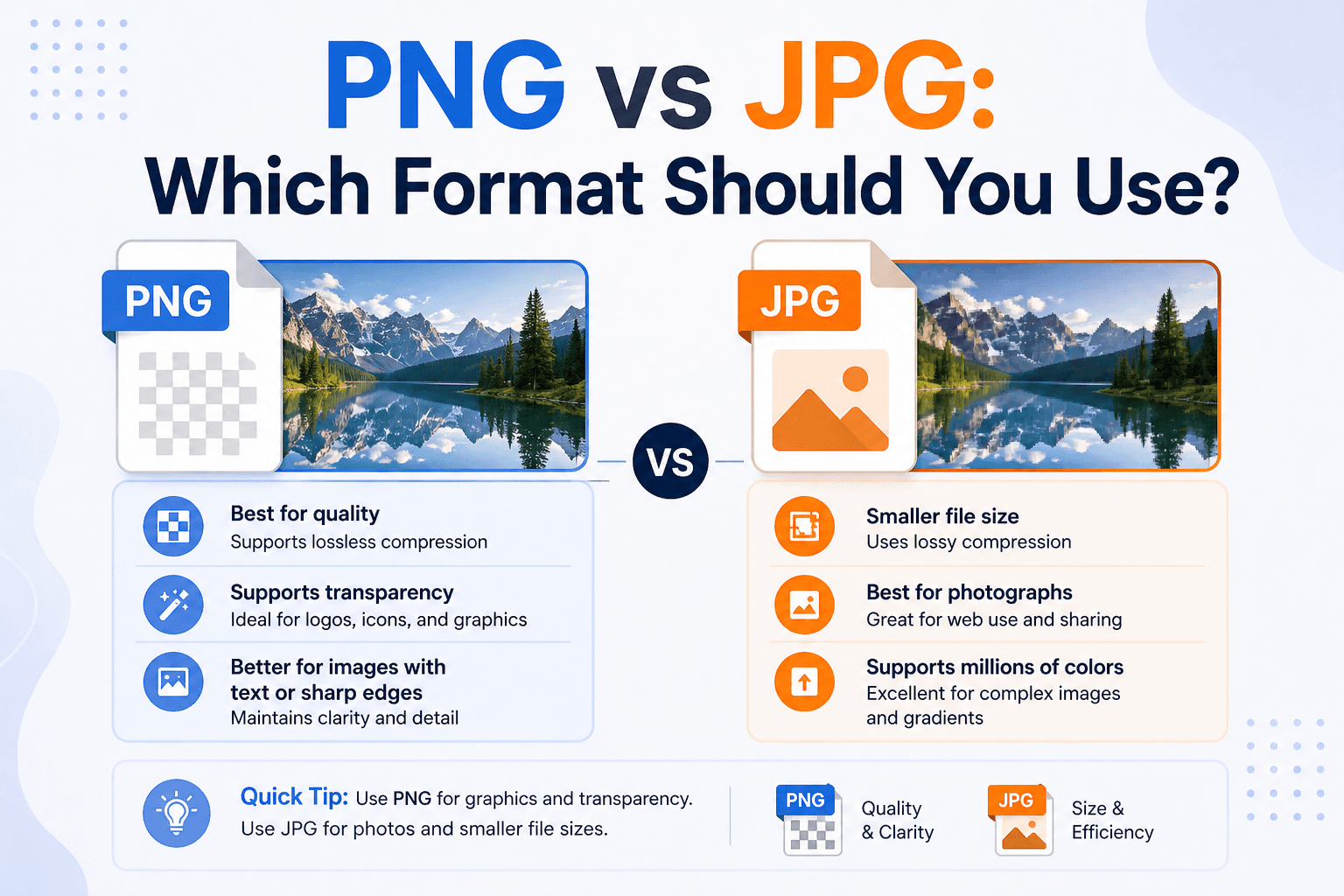
Use JPG for photographs and images with many colors and gradients. Use PNG for graphics, logos, screenshots, and anything with transparency or sharp text. For many modern web projects, WebP is another strong option — but PNG and JPG remain useful when compatibility or a specific workflow requires them.
Key differences at a glance
- Compression type: JPG uses lossy compression (removes data permanently). PNG uses lossless compression (no data loss).
- Transparency: PNG supports transparent backgrounds. JPG does not.
- File size: JPG is much smaller for photographs. PNG is smaller for simple graphics with flat colors.
- Quality: PNG always looks sharp. JPG introduces artifacts at low quality settings.
- Best for: JPG → photos. PNG → logos, screenshots, text, UI elements.
When to use JPG
JPG (also written JPEG) was designed for photographs. Its lossy compression algorithm is optimized for images with continuous color variation — sunsets, portraits, landscapes, product photos.
At a quality setting of 80%, a JPG photograph is typically 5–10× smaller than the equivalent PNG, with no visible quality difference at normal screen sizes. This makes JPG the standard format for photos on websites, social media, and email.
Use JPG when:
- The image is a photograph
- File size matters and you do not need transparency
- You are sharing on social media or embedding in a web page
Do not use JPG when:
- The image has text, sharp lines, or flat colors (logos, diagrams)
- You need a transparent background
- You plan to edit and re-save the file multiple times (each save adds more artifacts)
When to use PNG
PNG uses lossless compression, which means every pixel is preserved exactly. This is ideal for images where sharpness and accuracy matter more than file size.
Use PNG when:
- The image has a transparent background (logos, icons, UI elements)
- The image contains sharp text or lines (screenshots, diagrams)
- The image is a logo or graphic with flat colors
- You need to edit the image and re-save without quality loss
Do not use PNG when:
- The image is a photograph — PNG files will be 5–10× larger than JPG with no visible quality benefit
File size comparison
To illustrate the difference, here is a typical comparison for a 1920×1080 image:
- Photograph as PNG: ~3MB. Same photograph as JPG at 80% quality: ~300KB. JPG is 10× smaller.
- Logo (flat colors, transparency) as PNG: ~50KB. Same logo as JPG: ~120KB and no transparency. PNG wins for graphics.
What about WebP?
WebP supports lossy and lossless compression, transparency, and animation. It can produce smaller files than JPG or PNG for many images, and current major browsers support it.
For new web projects, WebP is often a good choice, while JPG and PNG remain appropriate for workflows that require those formats. You can convert any image to WebP using ConvertWiki's free WebP converter.
How to convert between formats
If you have a PNG that should be a JPG, or vice versa, you can convert it online. PNG-to-JPG conversion is lossy, while JPG-to-PNG preserves the existing pixels but cannot restore detail already lost to JPG compression:
Summary
The rule is simple: photos → JPG, graphics → PNG, web → WebP. Most mistakes happen when people save logos as JPG (blurry edges, no transparency) or photographs as PNG (unnecessarily large files). Match the format to the content type and you will always make the right choice.